
Set up webhooks
Register an HTTPS receiver, verify signed events, watch record changes and inspect notification attempts.
2 min readWebhooks notify your backend when a Sage command completes or a watched resource changes. They are separate from the OAuth callback that returns a customer to your app after pairing.
Add an endpoint#
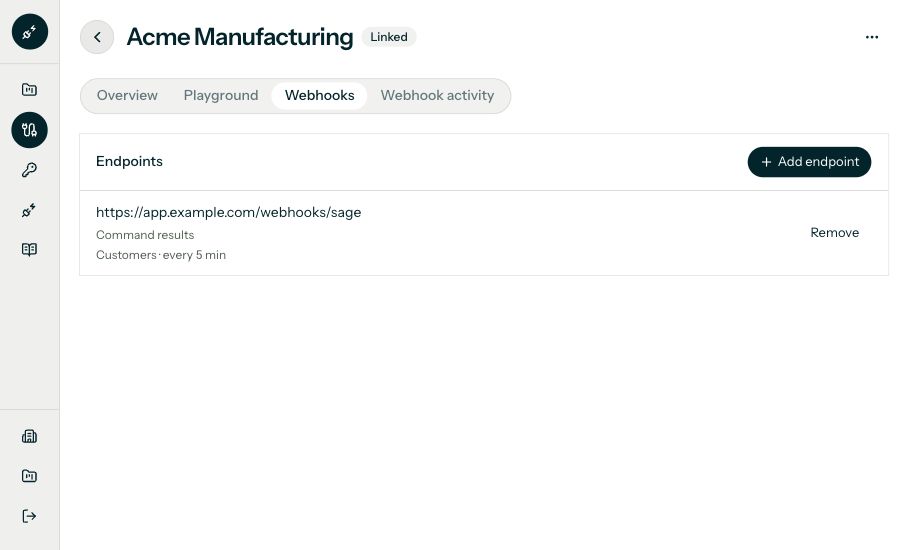
- Open Connections → View → Webhooks for the company.
- Select Add endpoint in the Endpoints card.
- Enter your receiver's public HTTPS Endpoint URL. Localhost and private network destinations are not supported.
- Select Copy secret and store the signing secret securely on your receiving server before registering. It will not be shown again.
- To receive record changes as well as command completions, enable Watch Sage records, choose the resources and a check interval.
- Select Register endpoint.

Command completion events are included by default. Record watching needs permission to list those resources. Supported polling intervals are every minute, every five minutes and every 15 minutes. Each connection supports up to ten webhook endpoints.
Verify notifications on your server#
- Keep the raw request body before parsing JSON.
- Read
webhook-timestampand compute HMAC-SHA256 with the signing secret overtimestamp + "." + rawBody. - Compare the hexadecimal digest with the
v1=value inwebhook-signatureusing a constant-time comparison. Reject stale timestamps according to your receiver's replay policy. - Deduplicate using
webhook-id. Persist the event durably before responding with a successful 2xx status. - Process the saved event asynchronously. Delivery has a five-second timeout and does not follow redirects.
Use the OpenAPI event schemas for each payload. A command completion can report failure; inspect the result. Notification delivery success means your receiver accepted the event, not that a Sage write succeeded.
Inspect webhook activity#
Open Webhook activity to see creation time, destination, status and attempts. Failed delivery can mean a signature mismatch in your receiver, an unreachable endpoint, a redirect, a timeout or a non-2xx response.
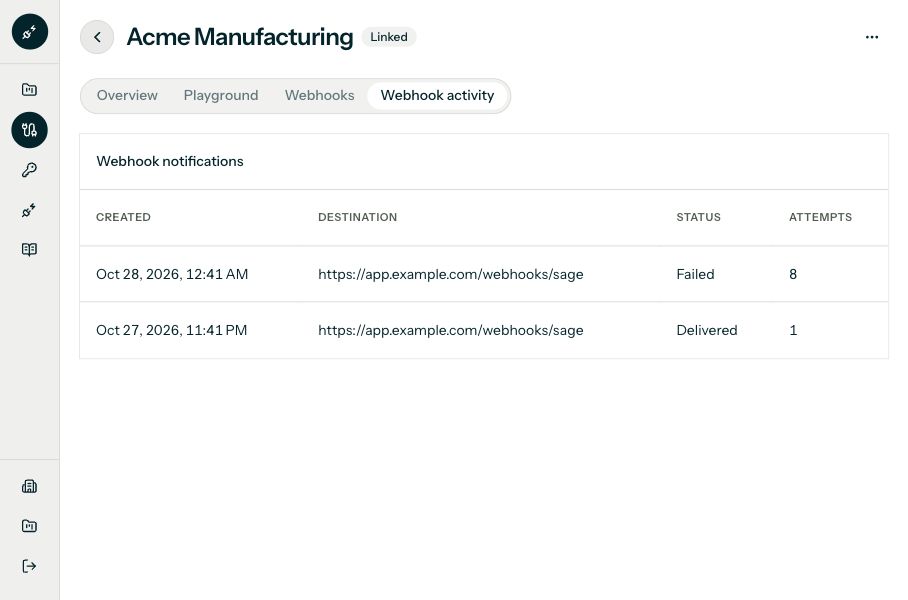
Automatic retries back off and stop after 12 attempts. The portal does not have a manual Retry action. Fix the receiving endpoint and reconcile any missed data through the API when automatic retries are exhausted.
Understand record changes#
Record notifications use polling. The next interval starts after a scan completes, so scan time, queue wait and retries add delay. Rapid edits can be coalesced, and a record created and deleted between scans can be missed. Handle event sequence and reset information in the schema, and use periodic reconciliation when you need a complete copy.
Remove an endpoint#
On Webhooks, select Remove, type remove in the modal and confirm. Future deliveries stop and pending deliveries for that endpoint are cancelled. The Sage connection itself stays linked.