
Connect a Sage company
Configure the local Sage company, enter your app's connection code, approve access and confirm the portal connection.
2 min readIn your software provider's app, choose Connect to Sage. Keep its code page open, then open Boost Plugins on your Sage computer. You do not need a portal login to enter the code.
1. Choose your Sage company#
- Open Company and select the detected company, or select Browse.
- Enter the Sage username and Sage password for that company.
- Select Save. The connector checks Sage access.

For UK companies, Browse should point to ACCDATA. Edition and version are detected automatically where possible; use Advanced settings only when prompted. US setup uses a company folder and Sage application ID instead.
2. Enter your app's code#
- Choose Activity → Connect, or Settings → Connections → Connect app.
- Paste your App connection code and select the Sage company. A complete HTTPS setup link also works.
- Select Continue, check the project and permissions, then select Connect.
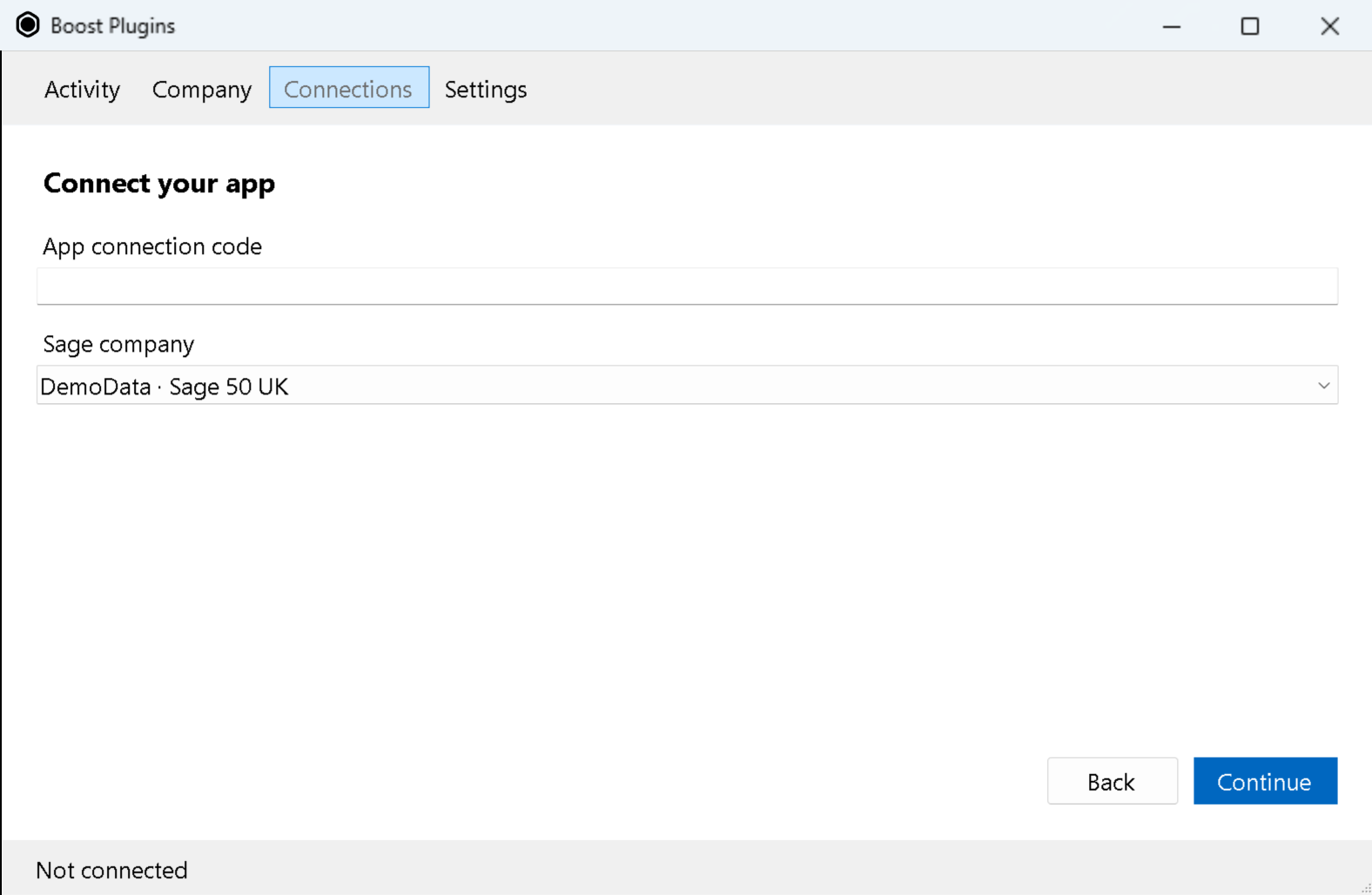
Return to the browser. Once it shows Sage connected, select Return to your app. Codes expire after 15 minutes; start a new connection attempt if needed. Keep codes and Sage passwords private.
3. Check the connection#
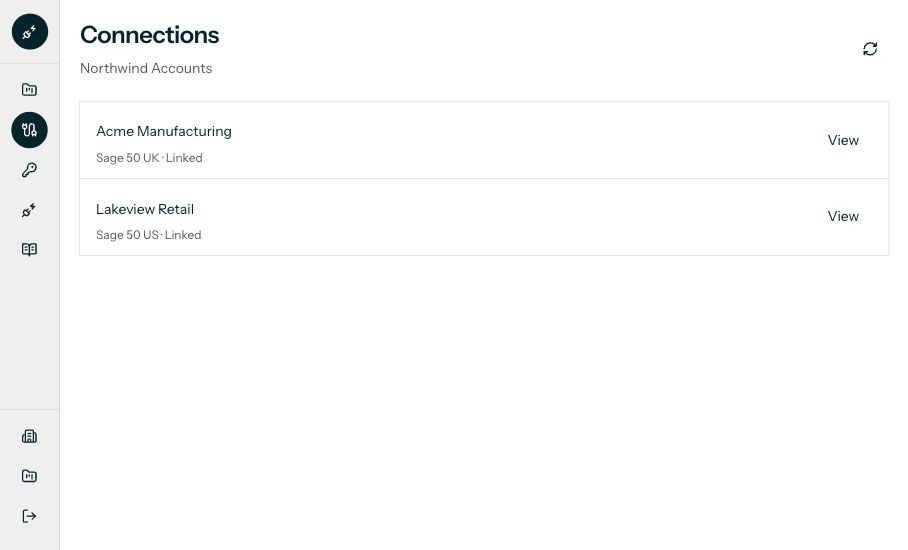
In the portal, select the correct project and open Connections → View. Check the latest check-in on Overview and run a read in the Playground. Linked confirms approved access, not that the PC is online.
Day-to-day use#
Activity shows recent requests and outcomes. Export last 24 hours saves the retained activity as a CSV.
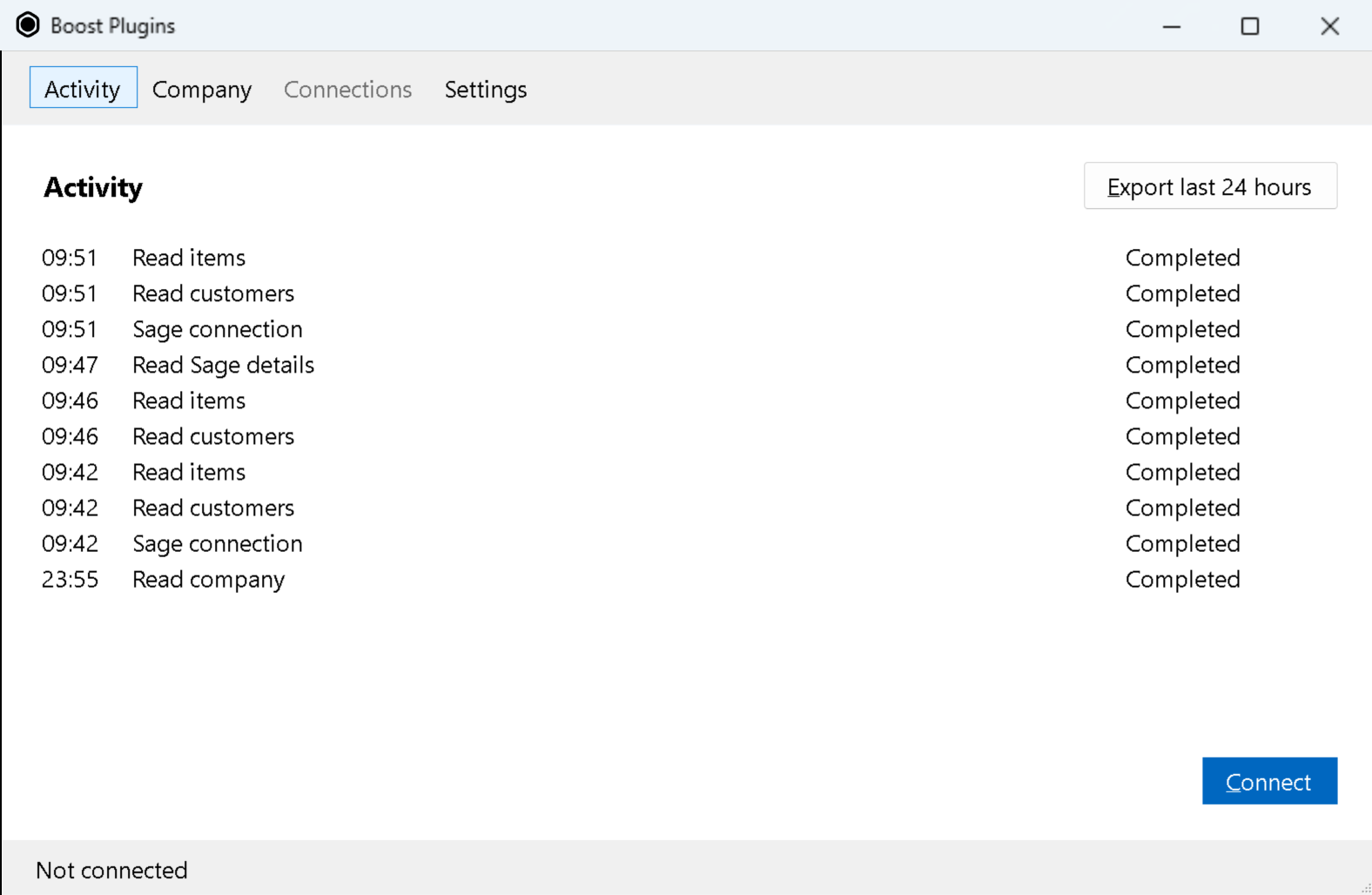
Use Company for Sage details, Connections to add or disconnect apps, and Settings for startup and troubleshooting.
If setup stalls#
- No code: start Connect to Sage in your provider's app. Downloading alone does not create one.
- Sage access fails: check the company folder and login, then use Settings → Sage connection → Check.
- No check-in: open the connector and keep the PC awake and online.