
Download and install the connector
Download the Windows ZIP, extract it, open Boost Plugins and keep it available for Sage requests.
1 min readInstall Boost Plugins on the Windows computer that can access your Sage company.
Before you download#
You need Sage 50, its compatible runtime, access to the company folder and a Sage login. Sage and its licence are not included. Check supported versions.
Download for Windows#
In the portal, open Connector → Download for Windows. Your browser saves Boost-Plugins.zip. The same download is available on your software provider's Connect to Sage page.
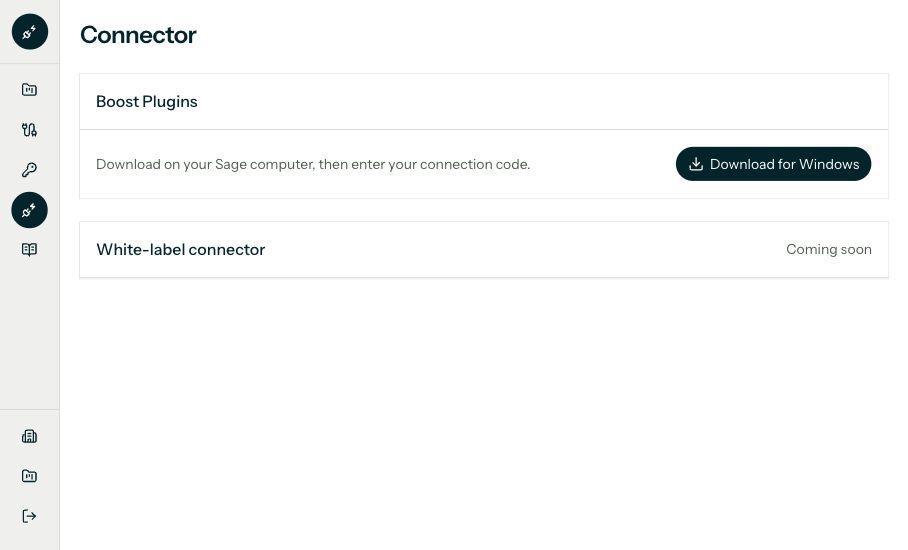
Download Boost Plugins for Windows
Extract and open#
- Right-click
Boost-Plugins.zipin File Explorer and select Extract All. - Extract the complete folder to a permanent location. Keep its files together.
- Open
Boost.Sage.Connector.exe, then connect your Sage company.
Do not run the app inside the ZIP. The download is unsigned; if Windows policy blocks it, contact your administrator.
Keep the connector running#
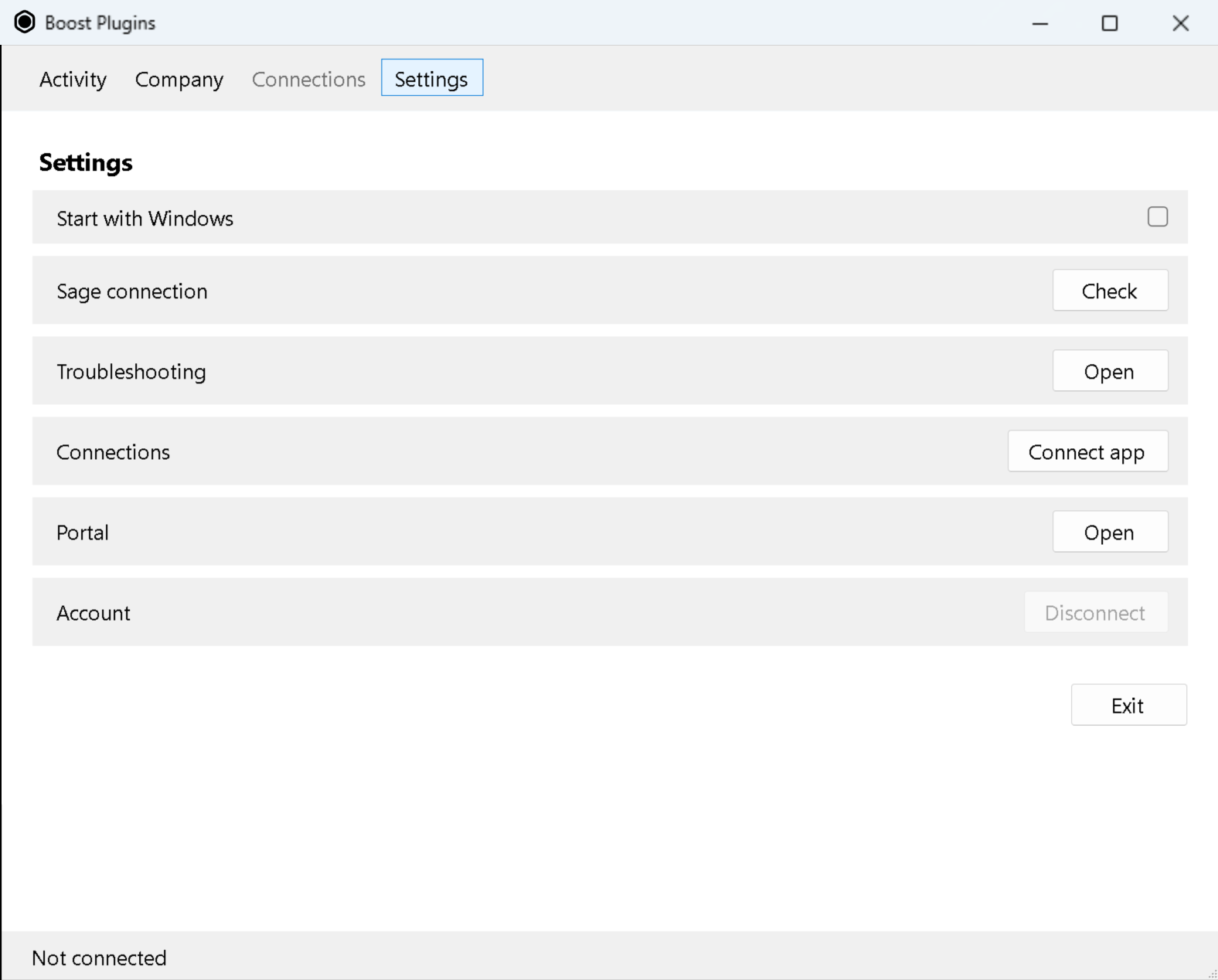
Keep the PC awake, online and signed in. Turn on Settings → Start with Windows to start at login. Closing the window keeps the connector in the notification area; Settings → Exit stops it.
Update the connector#
Updates are manual. Download the latest ZIP, exit the connector, replace its extracted files and reopen it as the same Windows user. Saved settings are retained in that user's profile. Check the status after restarting.