A ClickUp invoicing integration connects your ClickUp tasks to your accounting system. Invoices, due dates, and payment statuses stay up to date in both places without anyone retyping them. The task stays where the work happens. Xero keeps the official record. Boost Plugins builds that connection. This guide covers setup, the data that moves, and how to run invoice tracking in ClickUp.
What You Need Before You Connect ClickUp and Xero
Setup takes only a few minutes. Have these items ready:
- Admin rights to your ClickUp workspace
- Login permission to connect your Xero account
- The ClickUp folder or list where you keep billing tasks
- Your standard fields ready: client name, dollar amount, due date, and payment status
Getting paid on time is what counts. Overdue invoices run at 43% of credit-based B2B sales in North America, according to Atradius payment practices research, and chasing them down by hand eats up your workday.
How to Set Up a ClickUp Invoicing Integration

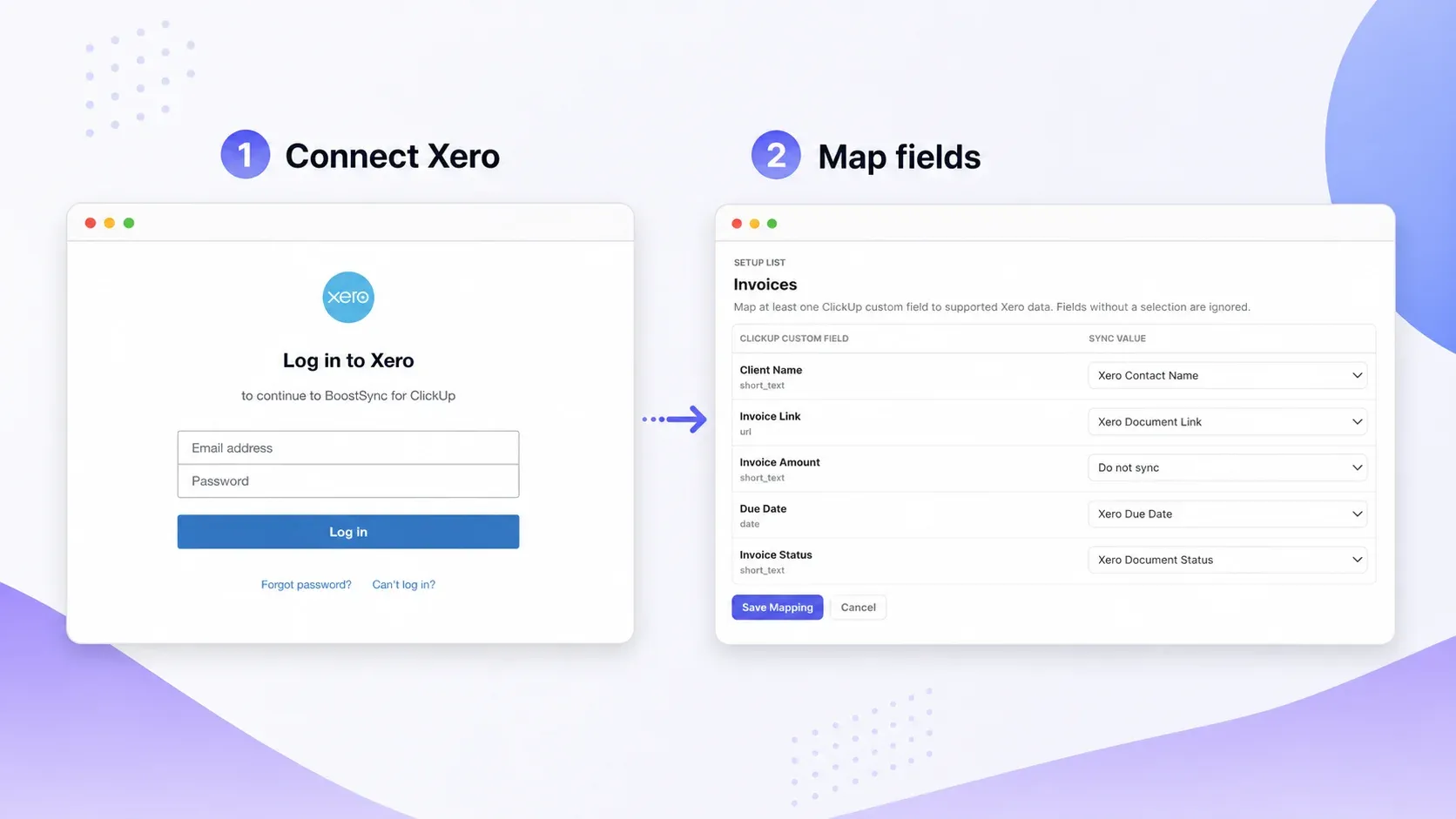
Boost Plugins handles this using BoostSync for Xero. You just sign in to both accounts and click approve. No tech experts, no messy codes, and no constant babysitting needed.
- Open the BoostSync website and log in using your ClickUp account.
- Click Allow to give it access to your ClickUp workspace.
- Sign in to Xero and approve access for your company (you can add multiple companies if needed).
- Select the specific ClickUp folder or list where your billing tasks live.
- Match your Xero information to your ClickUp fields: customer name, dollar amount, due date, and payment status.
- Open any task, select Invoice, pick your customer and items, and send it directly to Xero.
Important Watch-Out: Do not accidentally match your task title to the customer name field. Always double-check your field list before turning it on, or you will have to fix those tasks by hand later.
What Invoice Data Moves Between ClickUp and Xero

You don’t need to duplicate all of your accounting software into ClickUp. Your team only needs to see the key details that help them get work done without having to constantly log into Xero.
Here is a straightforward guide to how these systems share information:
|
What Comes from Xero |
Where to Put It in ClickUp |
Why It Helps Your Team |
|
Client Name (Contact) |
A custom field on the task |
Pulls the official client name automatically so nobody typos it. |
|
Invoice Number & Total Amount |
Custom fields on the task |
Shows the job's dollar value right away without opening the accounting program. |
|
Due Date |
The task's "Due Date" field |
Lets ClickUp send automated reminders before payments or deliverables are late. |
|
Payment Status (Paid/Unpaid) |
A simple dropdown or status tag |
Everyone instantly sees whether a bill is settled or still pending. |
|
Item Breakdown (Line items) |
A direct link to the Xero invoice |
Keeps tax rates, quantities, and receipts attached to the job without cluttering your daily task view. |
Helpful Tip: Quotes, incoming vendor bills, and purchase orders work the same way. You link only what your team needs to finish the job, and leave the heavy bookkeeping inside Xero.
How to Keep Payment Status Current Without Chasing It

Creating the invoice is the easy part. Keeping its status honest is where most setups fall apart. Once the sync is live, build these:
- A saved view filtered to unpaid invoices
- Reminders on the due date field, assigned to a named person
- An automation that flags anything past due and notifies the owner
US small businesses take an average of 29.3 days to get paid according to Xero Small Business Insights, with payments landing roughly 8.5 days past due. The same thinking runs through the Xero automation software Boost Plugins builds, so the pattern carries over if your team also works in monday.com.
Is It Possible to Create an Invoicing Tool in ClickUp Using API or “Make”?

Yes, you can. The better question is whether it is worth your time and effort.
Here is how a do-it-yourself setup works:
- You set up custom fields on a task.
- An automated trigger fires when the status changes.
- A tool catches the alert, collects the missing values, and sends everything to your billing software.
It works, but you become the full-time maintenance person.
Where DIY Setups Cause Headaches
- Renaming a single field quietly breaks the entire pipeline.
- Failed runs require a real person to babysit and fix them.
- Per-run automation bills climb fast as your invoice volume grows, which is why Zapier gets expensive once invoices scale.
A ready-made app avoids the build completely. Connect your accounts, match the fields once, and bill straight from your task.
Who Builds BoostSync for Xero and Why It Matters

Accounting sync is easy to get wrong, so it helps to know who built it.
Boost Plugins was founded by Griffin Miller and Michael Sweetland, who both studied at the University of Michigan. Michael studied data science, was a lead engineer at Amazon Marketplace on the global expansion and accounting teams, and specializes in accounting workflows at scale. Griffin studied computer engineering and has over ten years at software companies, specializing in cloud infrastructure and distributed systems.
That shows up in the product:
- OAuth sign-in, no API tokens in a spreadsheet
- Flat monthly pricing, not per automation or run
- Up to 10,000 documents per board on the Pro plan, in beta
Put Your ClickUp Tasks and Xero Invoices on the Same Page

Invoicing goes wrong in the gap between where work is tracked and where money is recorded. Closing it is not a big project. Connect the two accounts, map the fields once, and let the task and the invoice keep each other current. Boost Plugins built the ClickUp Xero integration to do exactly that. Book a demo before you commit.
FAQs About ClickUp Invoicing
Does ClickUp have invoicing built in?
No. ClickUp holds invoice details in custom fields but does not create or send accounting invoices. That is why teams connect it to Xero.
Can I create a Xero invoice from a ClickUp task?
Yes. Open the task, choose Invoice, pick the contact and line items, and create it. Details sync back to the task.